

A: Steps to access and use VPS Control Panel :
1) Access and Log into your Client Portal of GB Network Solutions at https://secure.gbnetwork.com/clientarea.php .

2) Click on your personal account tab "Hello, Customer!" to access your "Email History".

3) Search for the "New Windows VPS FX Details" and click on it to "View Message".

4) In the VPS Message, search for "VPS Control Panel Access" based on your products to get your log in details for VPS Control Panel.

5) Access the URL given based on your VPS details and insert your given Username and Password. Then, click Login.

6) Now you have successfully access your own VPS Control Panel.
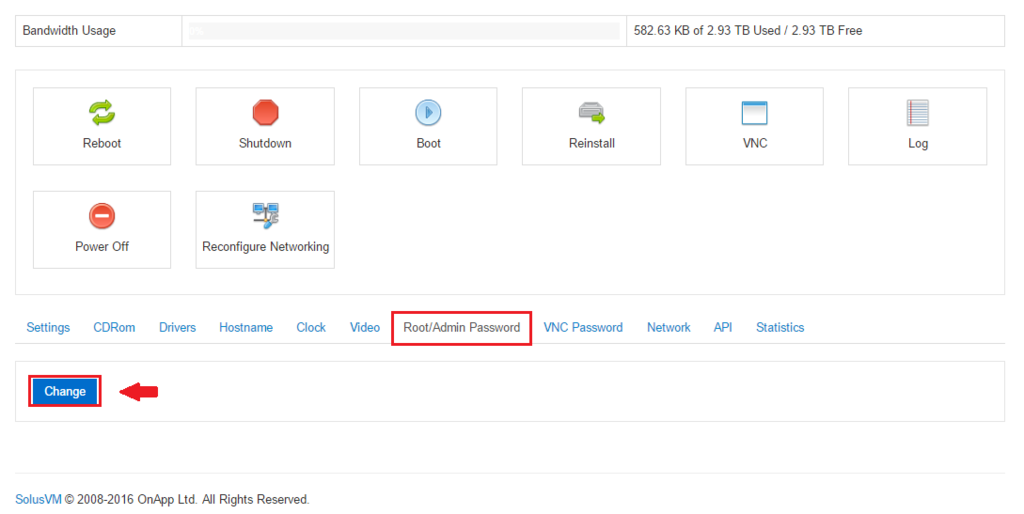
On VPS Control Panel, you can perform some general actions such ad Reboot,Boot Reinstall Operating System and changing your own password.
- Reboot : Button that used to restart your VPS.
- Boot : Button that used to start up the operating system of a VPS when it is turned on.
- Reinstall : Button that used to reinstall the operating system for your VPS.
7) To change your VPS password, kindly follow this steps :
- Scroll down to the bottom of the screen, click on "Root/Admin Password" and click "Change" to change your VPS password.
- The action screen will pop up and click "Yes" to continue.

That's all, Thank You.
