

How to access Forex VPS via RDC on iOS & Android Device ?
You can connect to a remote Windows VPS or Window server on your mobile device. This guide covers all of the most common devices including:
- iOS devices: Smartphones, tablets
- Android devices: Smartphones, tablets
We suggest using the official Microsoft Remote Desktop Connection (RDC) app for iOS or Android.
You can find the app by searching your device’s (app store/play store) for “Microsoft RDC”.
You can follow this guide below for both uses of iOS and Android device.
iOS Device :
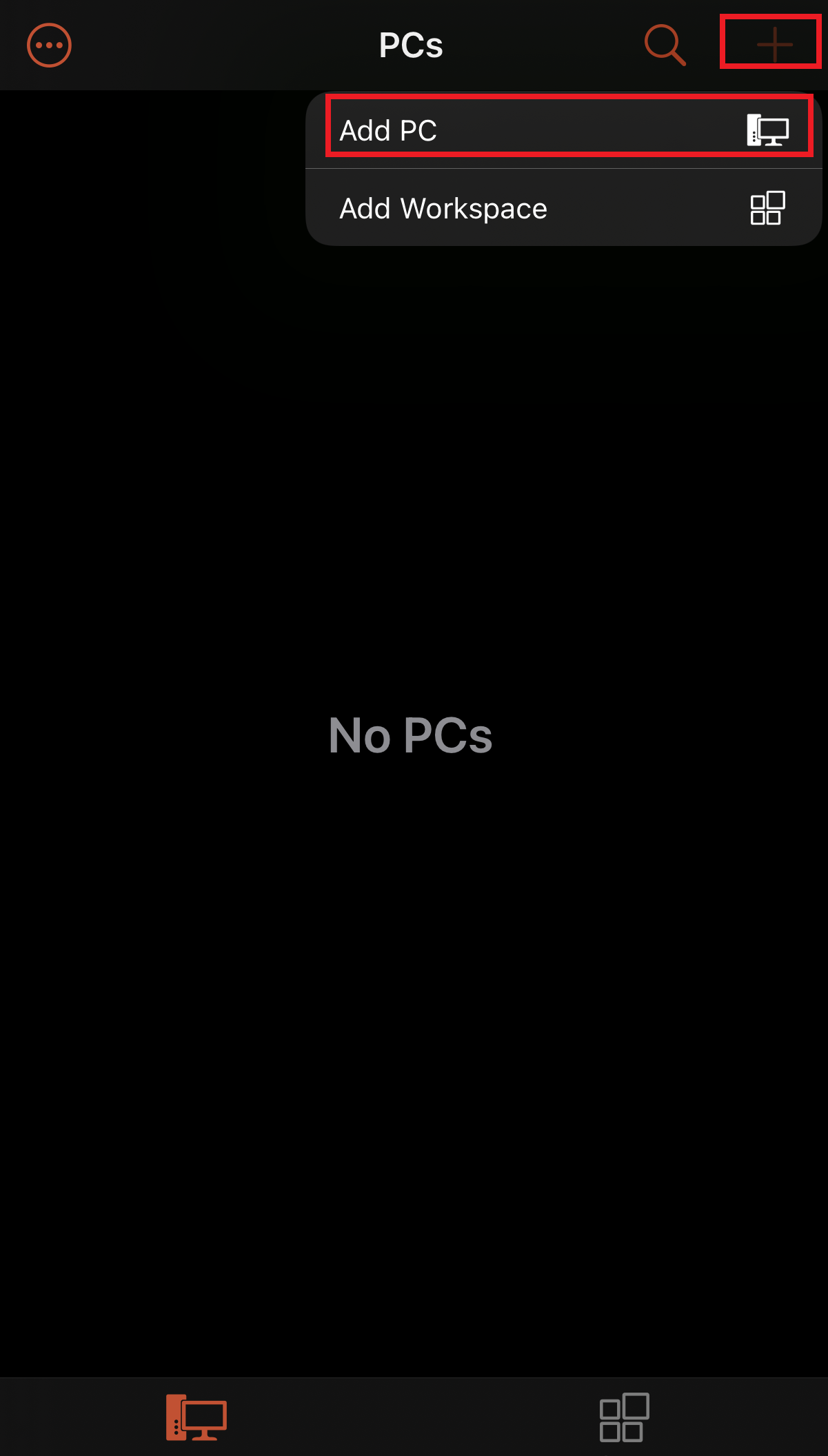
1. Open the Remote Desktop Connection (RDC) app. Select the “+” and choose "Add PC" to add a new connection profile.
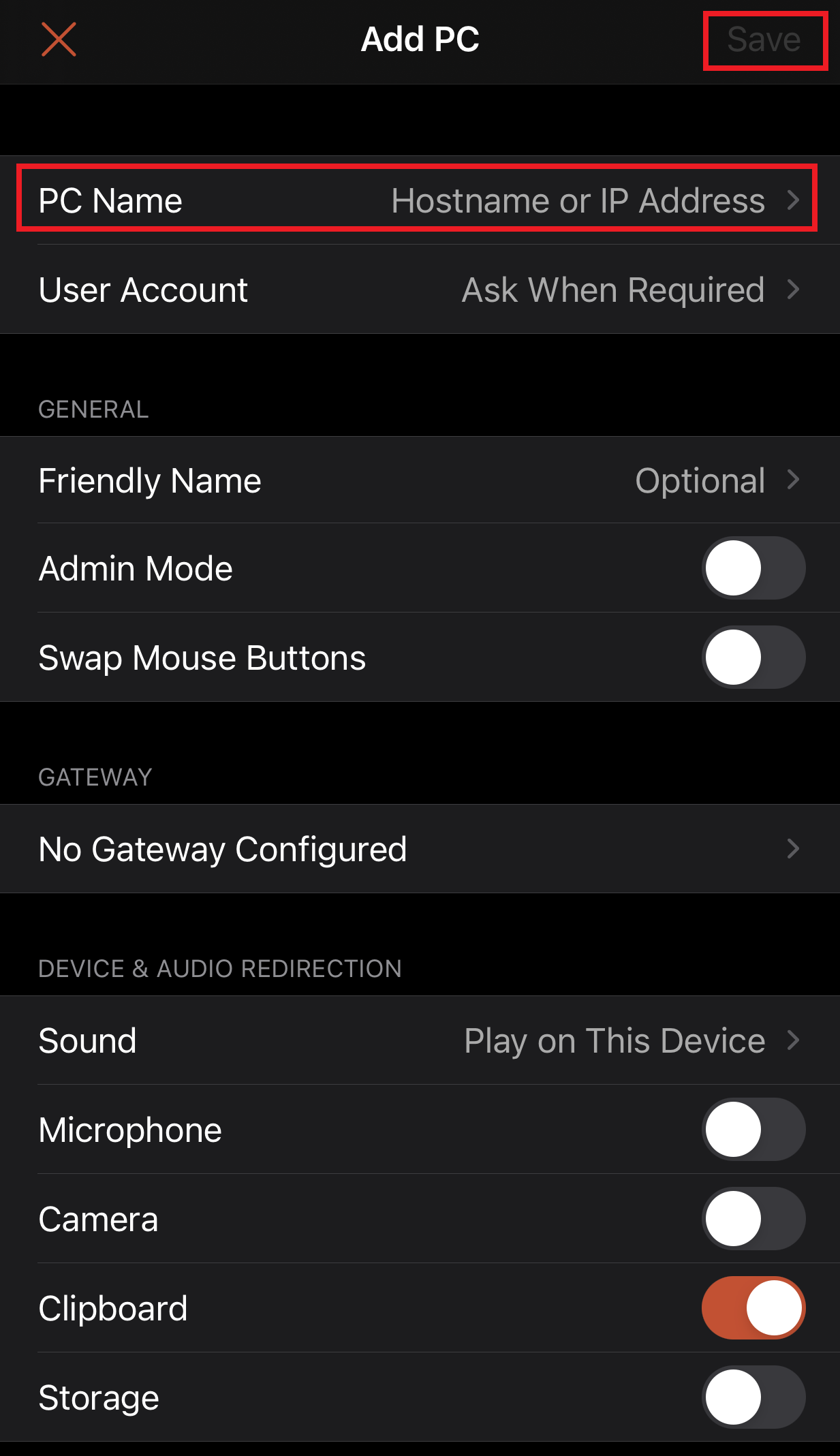
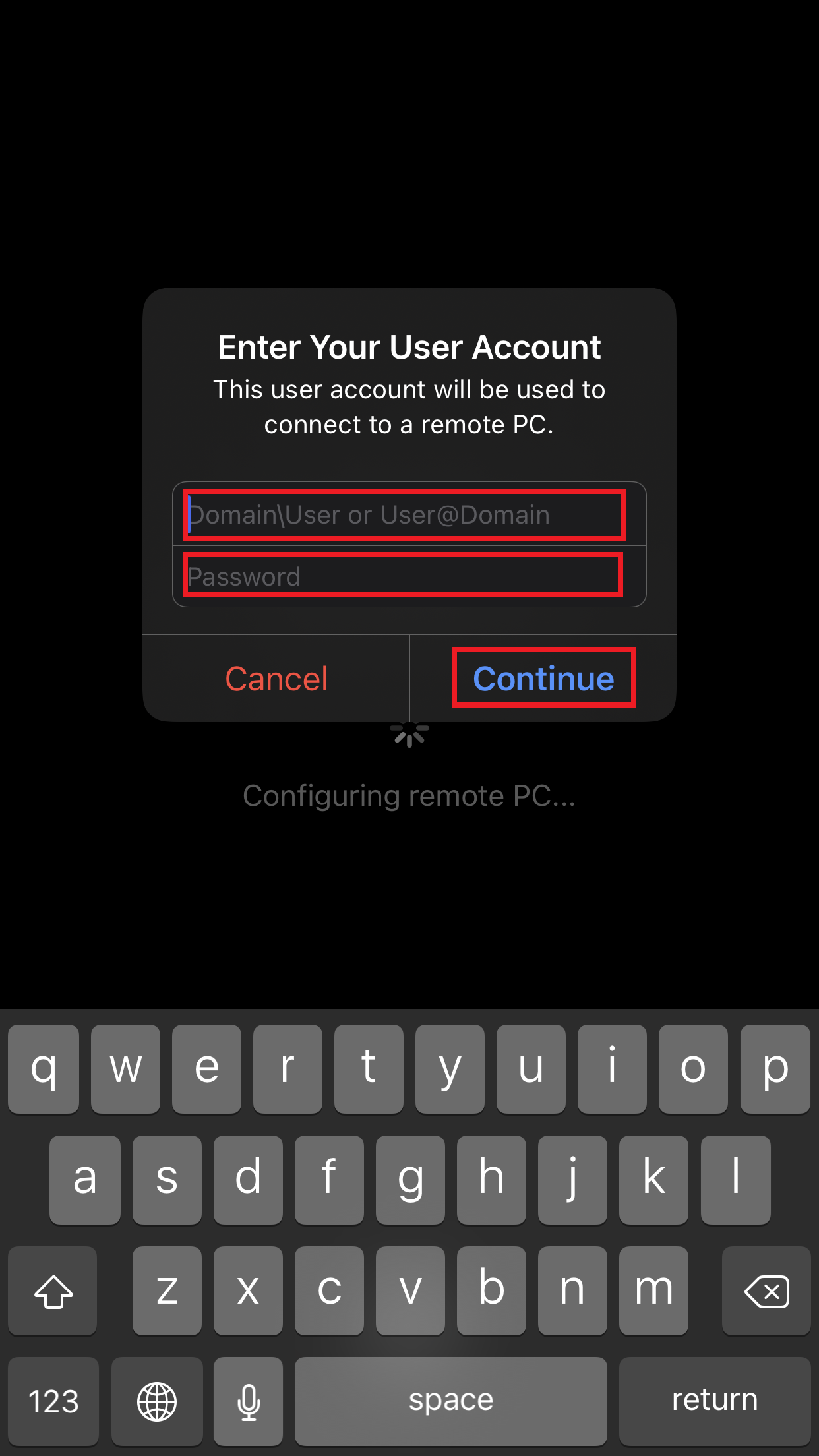
2. In the field “PC name”, enter the public IP address of your Windows VPS or Windows server. Click the "User Account" to fill in the Username and Password fields as well. Then, click "Continue".
3. The remote Windows desktop will appear on your screen.

5. That’s it! Now you can view and control the remote Windows VPS or Windows server directly from your iOS devices.
Android Device :
1. Open the Remote Desktop Connection (RDC) app. Select the “+” and "Desktop" to add a new connection profile.

2. In the field “PC name”, enter the public IP address of your Windows VPS or Windows server. Then, tap Save.

3. Tap the check-mark to save the connection. Now you can open a connection using the new profile. You might see a certificate warning like the one below because the server’s SSL certificate is self-generated. This is OK, and you can choose “Connect”

4. Enter VPS password and tap Connect.

5. The remote Windows desktop will appear on your screen.

If you experience any trouble with this process or would like assistance connecting to a Windows server or Windows VPS, please don’t hesitate to contact our GB Network Solutions Technical Support team. Thank You.
