This tutorial shows how to install WordPress via Softaculous. It will take a few steps and be easy. Let’s start:-
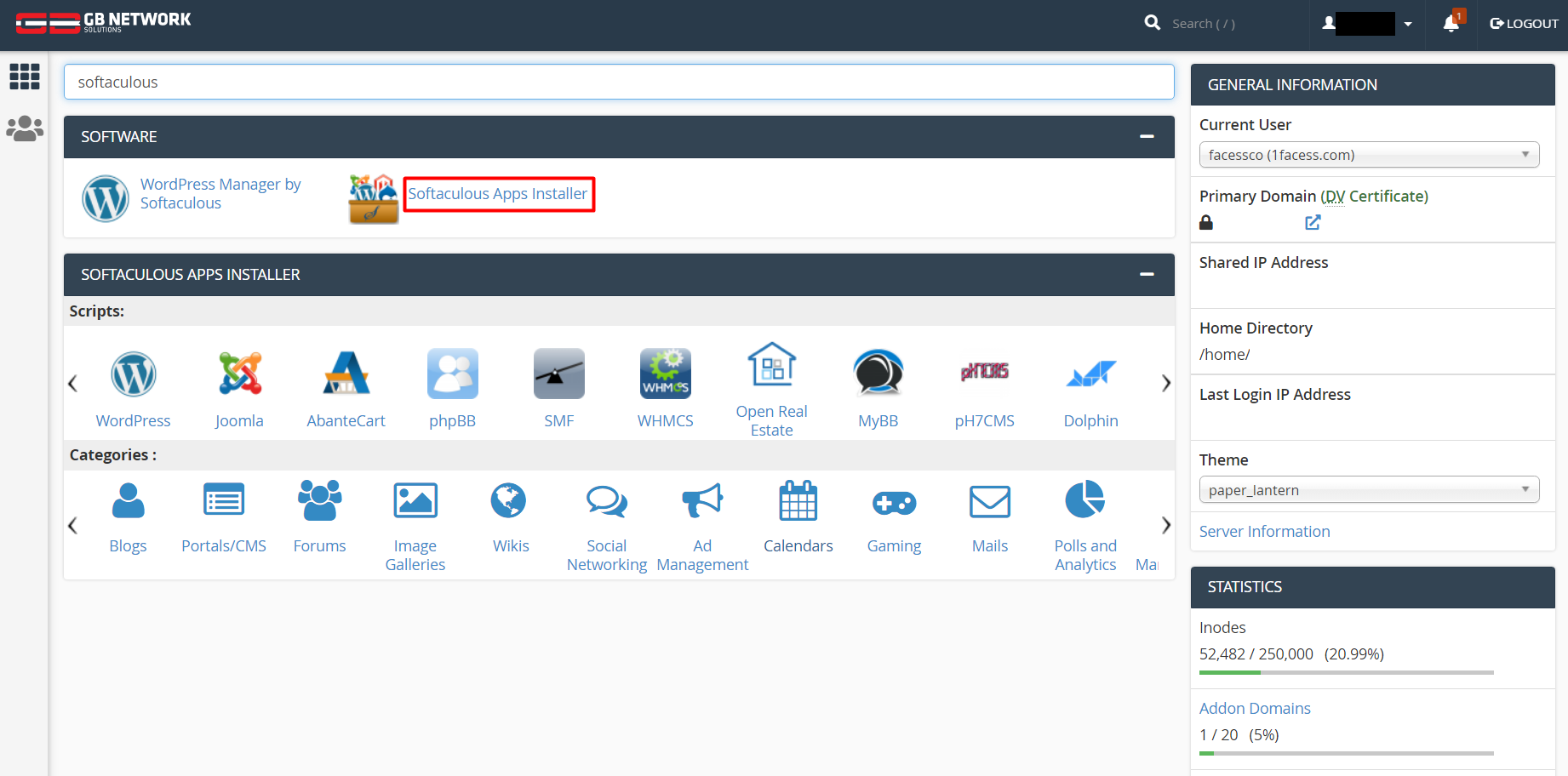
1. log in to your cPanel account and find the Softaculous Apps Installer icon under the Software section
2. Choose WordPress by click install.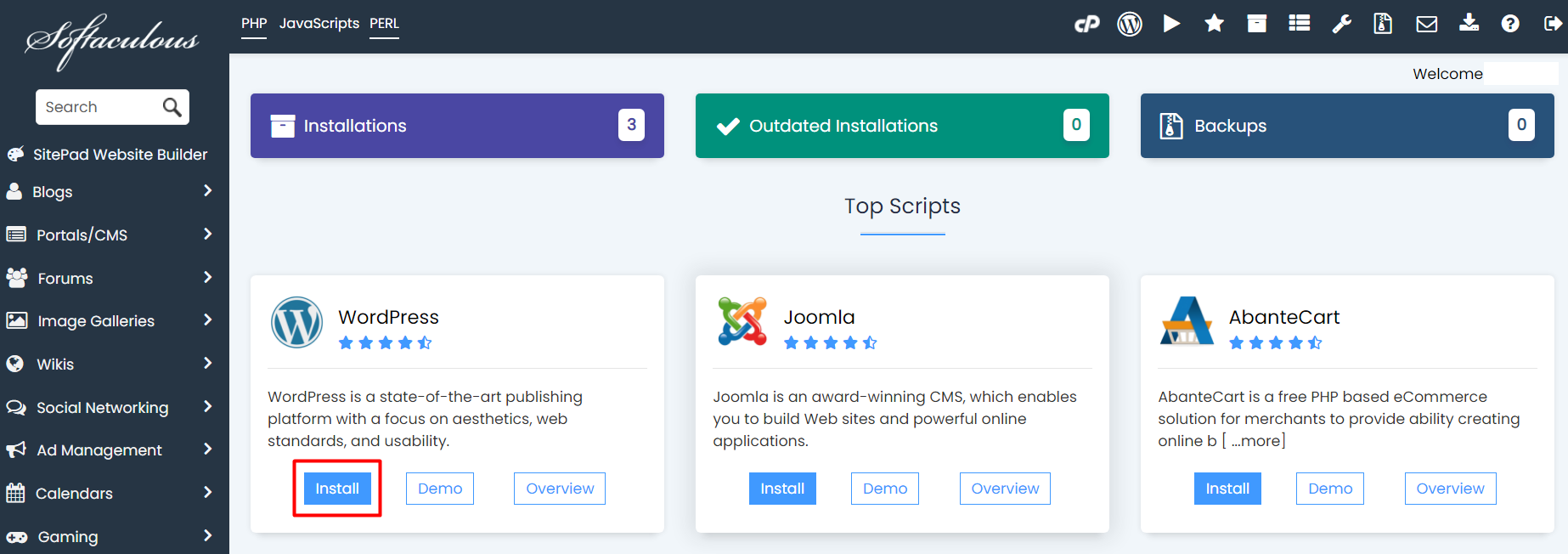
3. On the next page, click the Install tab.
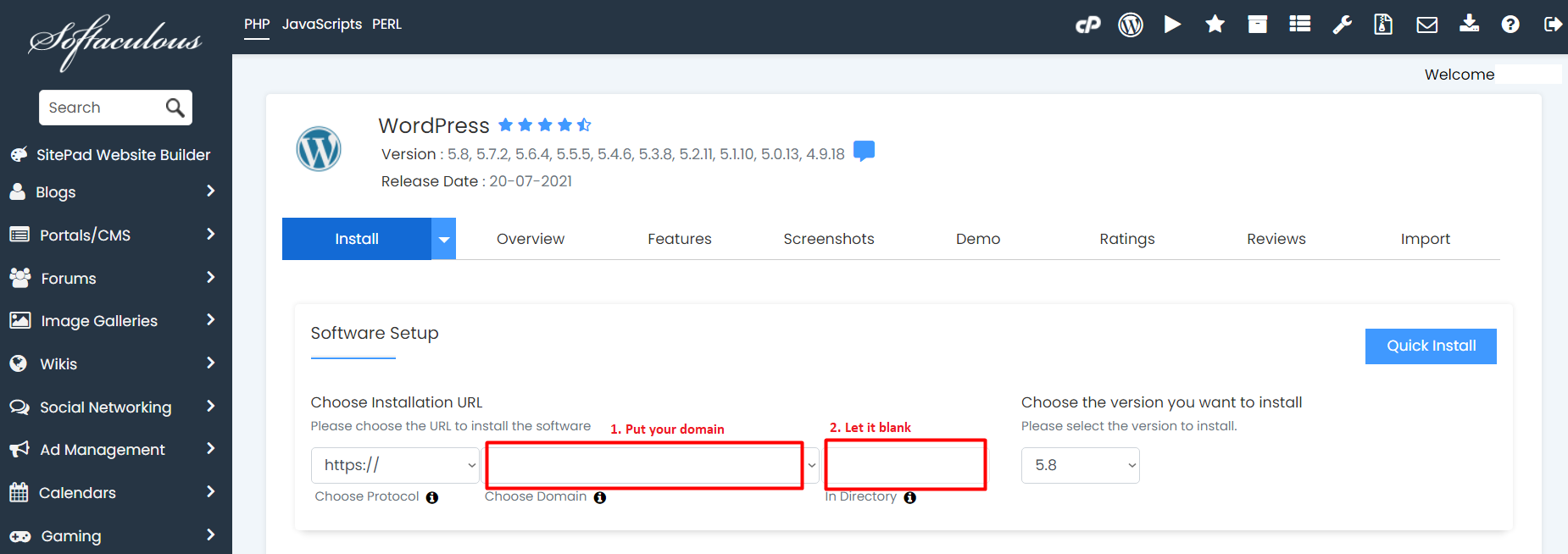
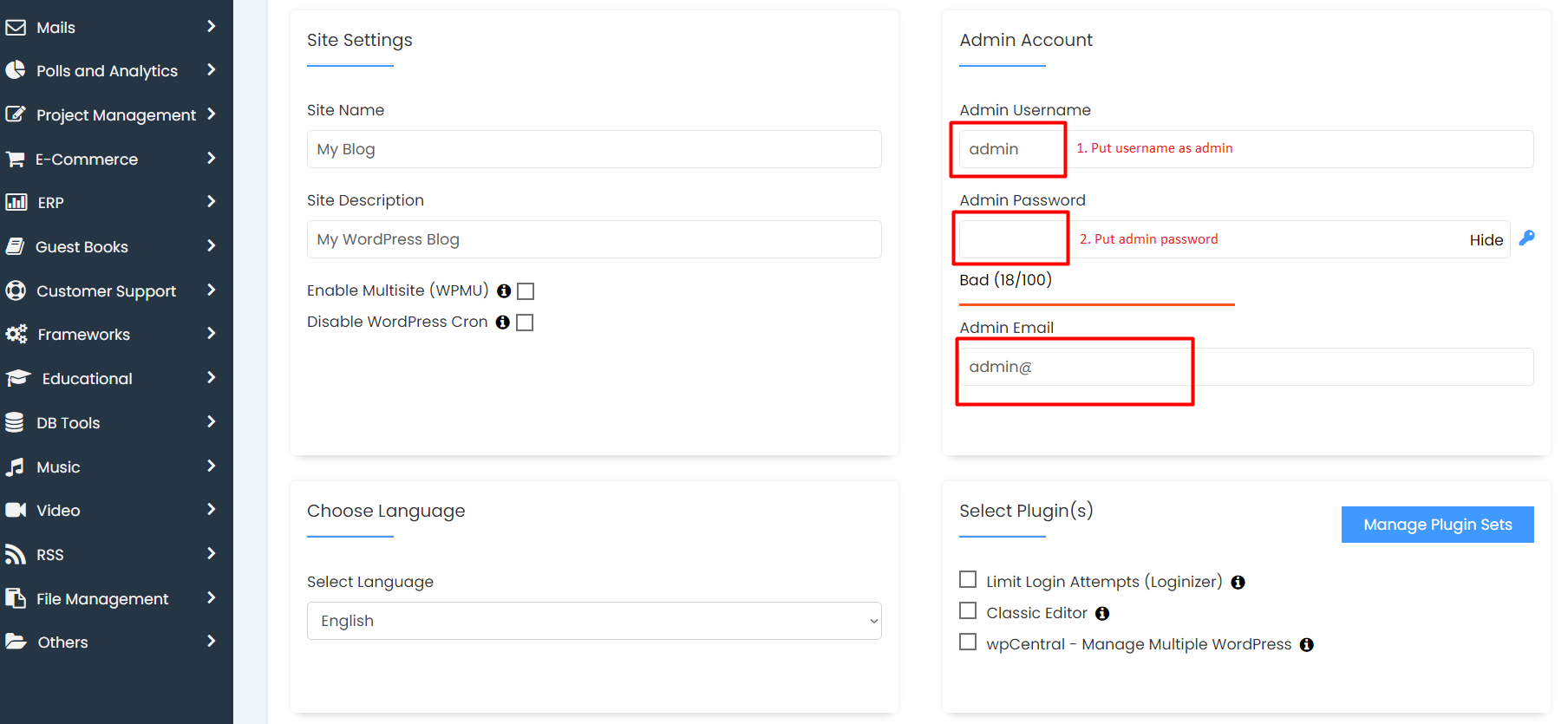
4. Fill the Install Form
Choose Installation URL: choose the domain and the folder where you want to install WordPress
Note: If you want to install WordPress at document root etc test.com and Not in a subdirectory etc test.com/wp the leave the directory field blank as shown in the picture.
Admin Username: Choose the username to be used for the WordPress admin/wp-admin account
Admin Password: Choose the password to be used for the WordPress admin/wp-admin account
Admin Email: Choose the email to be used for the WordPress admin account.
5. Click the Install tab 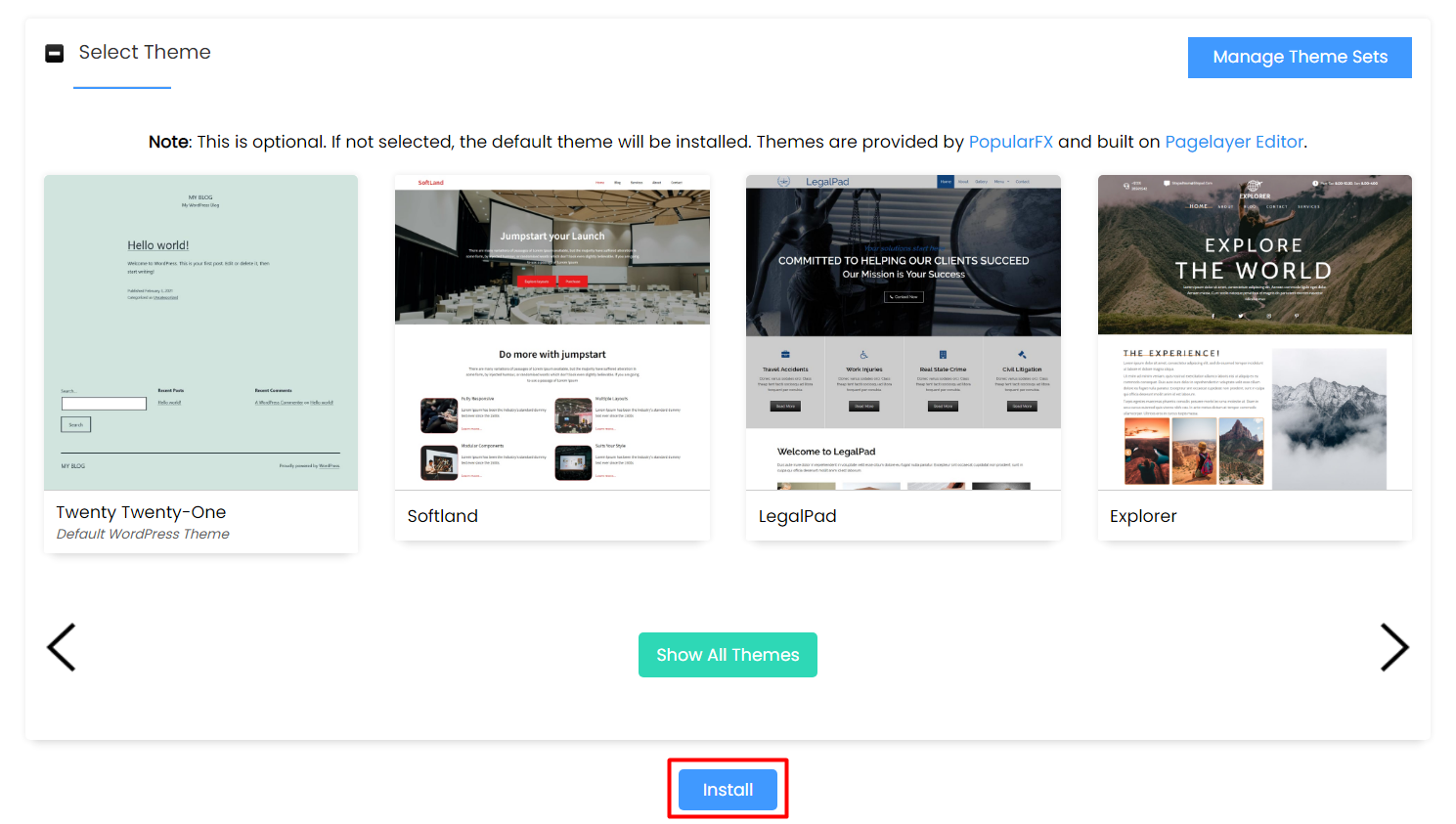
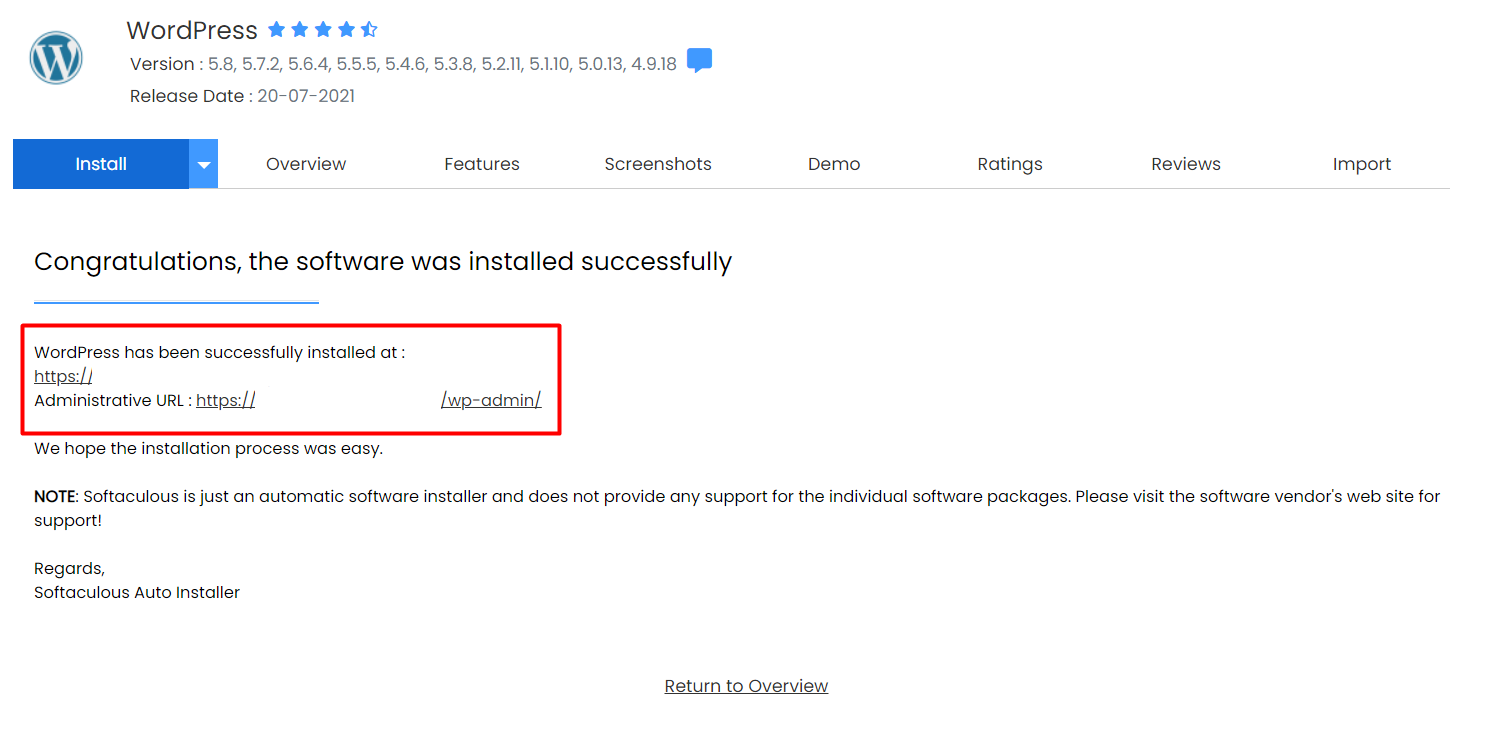
6. Installation Completed
You will see the success messages and URL for access the WordPress admin panel as shown in the picture below when installation is completed: