

Follow these steps to setup Email Hosting in Microsoft Outlook
STEP 1: From your computer, open Microsoft Outlook
STEP 2: Click the File tab at the upper left side
STEP 3: Click Add Account

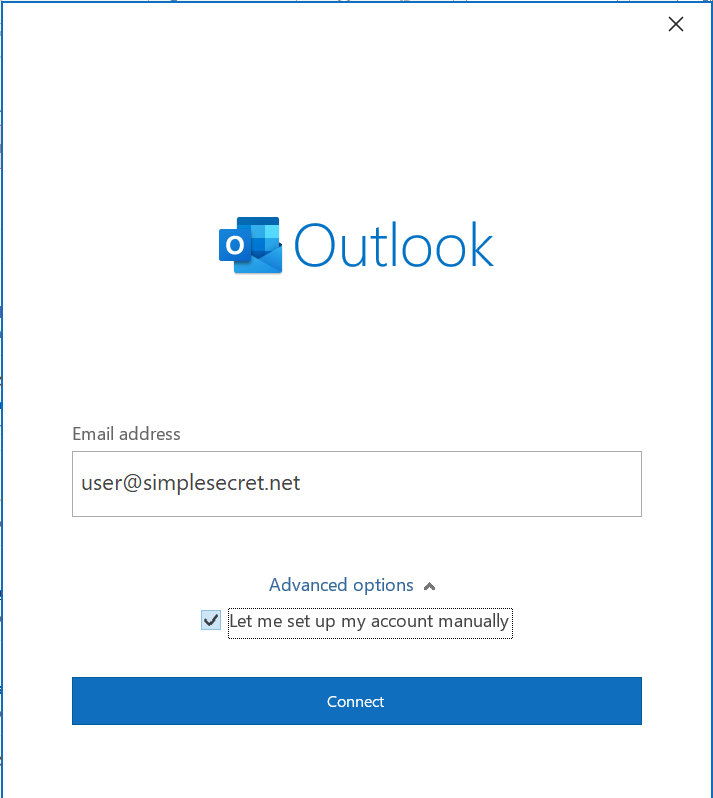
STEP 4: Enter your SmarterMail email address and click Advanced Options. Make sure to tick 'Let me set up my account manually'. Then, click Connect
STEP 5: Choose IMAP

STEP 6: At the IMAP Account Settings, enter the Incoming and Outgoing Mail Setting as the picture below

STEP 7: Enter the user password and click Connect

STEP 8: Click Done

Congratulations! You have successfully setup Email Hosting in Microsoft Outlook.
If you need any further assistance, do contact us at [email protected]
